
Users: Scheduling a Pay Change
Table of Contents
Navigating to the Schedule Changes Form
To navigate to the "Schedule Changes" form, start by clicking on the "People" tab from the primary navigation bar at the top of the page. Then, either use the search bar or scroll through the list of users to find the relevant user who requires a pay change. Click on the user's profile.
Once the user's profile is open, scroll down the "Employment Details" section and click the three dots icon at the top right of the section. From the dropdown, click the "Schedule Pay Change" button.
This will open the "Schedule Changes" form. See video below for a demonstration:
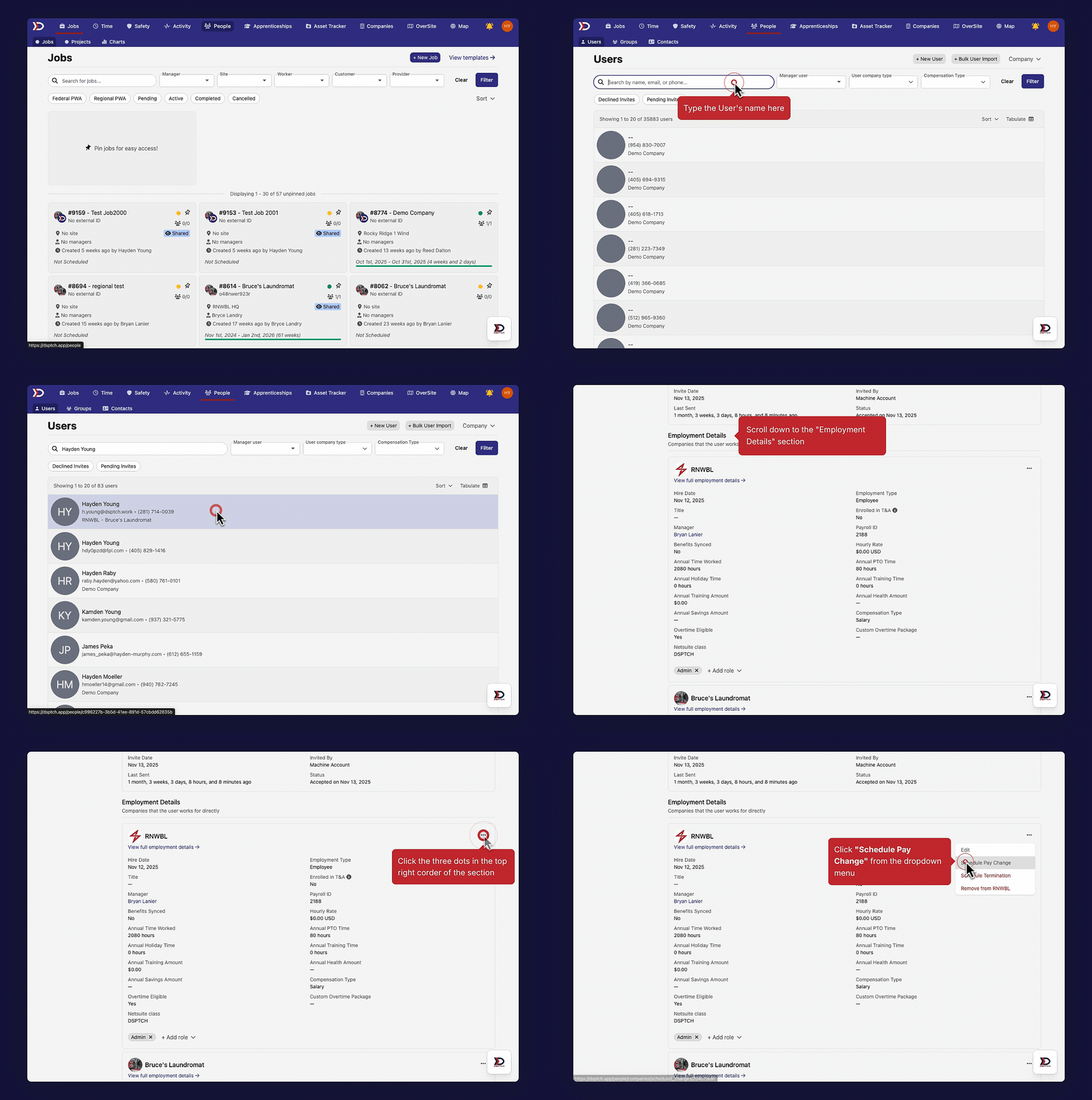
Scheduling a Pay Change
There are several fields included in the "Schedule Changes" form (pictured below):
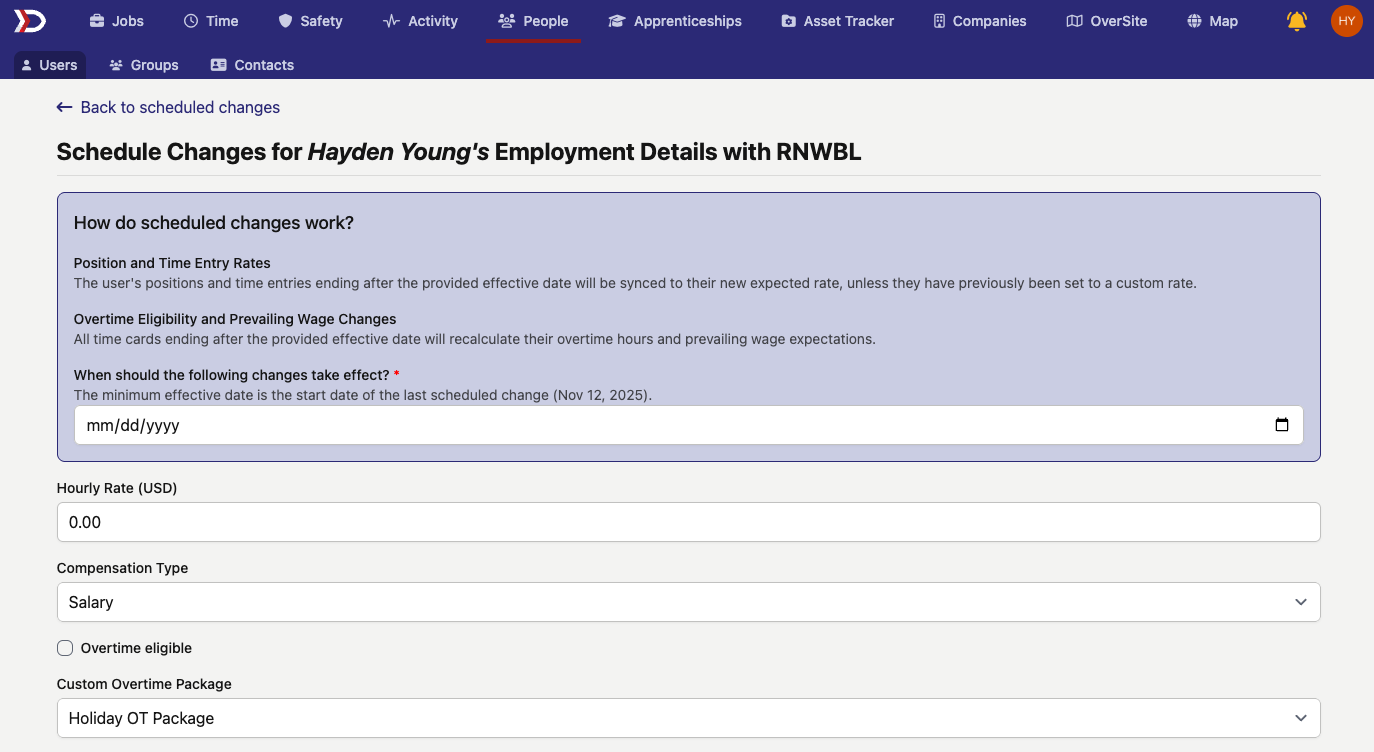
- Effective Date (Required):
- The date (in MM/DD/YYYY format) that the pay change will take effect (i.e. update the default hourly rate for all active positions the user is assigned to).
- Hourly Rate (USD) (Required):
- The new rate that will be used as the user's default hourly rate.
- Compensation Type (Required):
- Select if the user is an hourly or salaried employee.
- Overtime Eligible Toggle (Required):
- Toggle on if the user is eligible for overtime pay.
- Custom Overtime Package (Optional):
- Select an overtime package if applicable.
See the video below for a demonstration of filling out the "Schedule Changes" form:
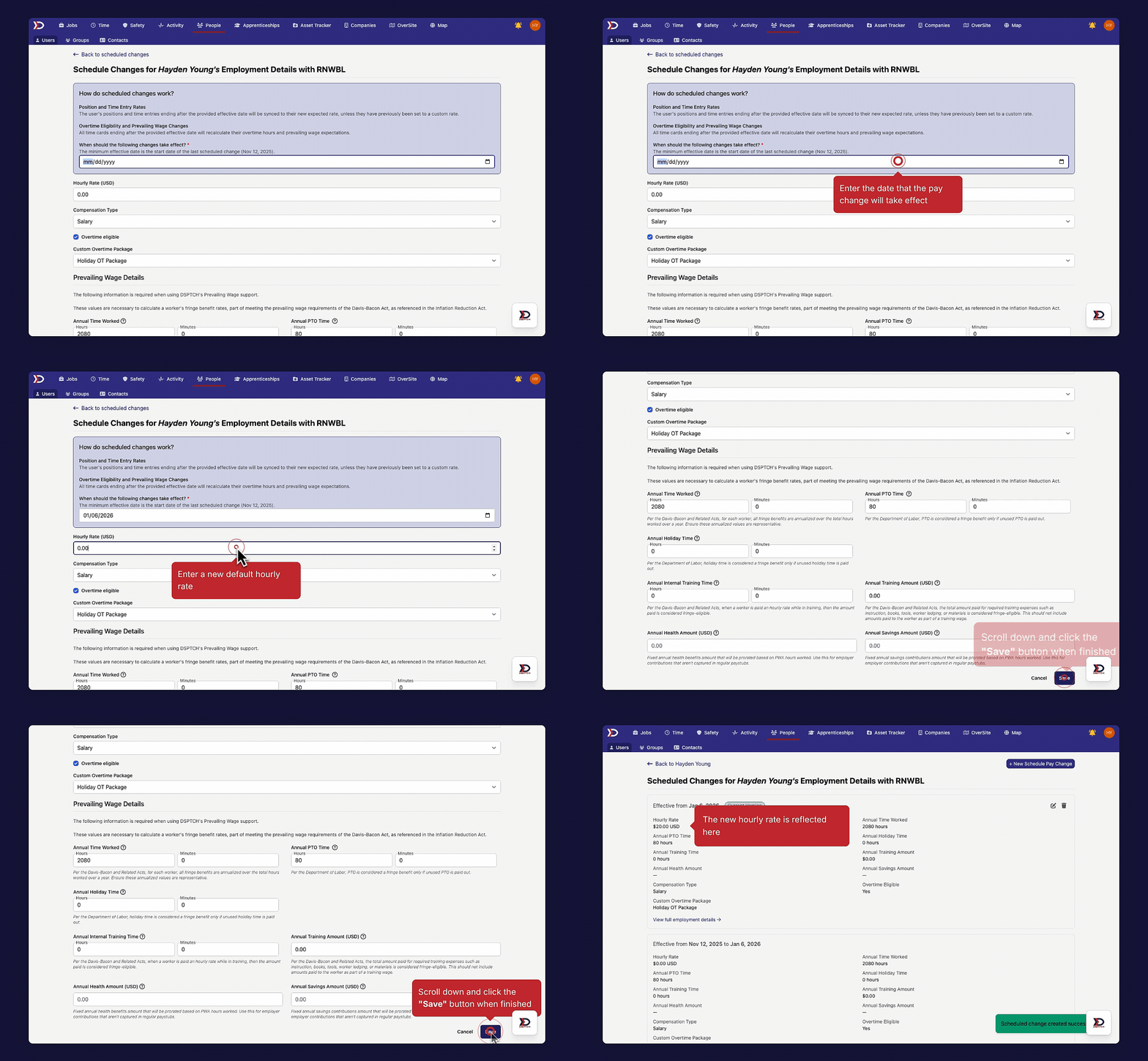
For a deep dive on the "Prevailing Wage Details" section of the "Schedule Changes" form, please read our help document here.
How a Pay Change Affects Time Entries
For a full breakdown of How a Pay Change Affects Time Entries, please read our Hourly Rates help document