
Subcontractor PWA Onboarding: Payroll Integration
DSPTCH partners with Finch to integrate with 250+ payroll providers. Please follow the instructions below to complete the integration.
Table of Contents
- How to Integrate DSPTCH With Your Payroll Provider
- How to Map Fields From Your Payroll Provider to DSPTCH
How to Integrate DSPTCH With Your Payroll Provider
To integrate DSPTCH with your payroll provider, start by navigating to the "Time" tab from the primary navigation bar at the top of the page. Then, select the "Settings" tab from the sub-navigation bar. Next, click "Integrations" in the menu on the left of the page. Next, click on "+ Add connection" button in the middle of the page. Lastly, search for your payroll provider by name in the search bar and then click on it in the dropdown menu.
If your payroll provider does not appear after searching for it in the "Payroll Provider" search bar, please contact your DSPTCH onboarding specialist for assistance.
See the video below for a demonstration:
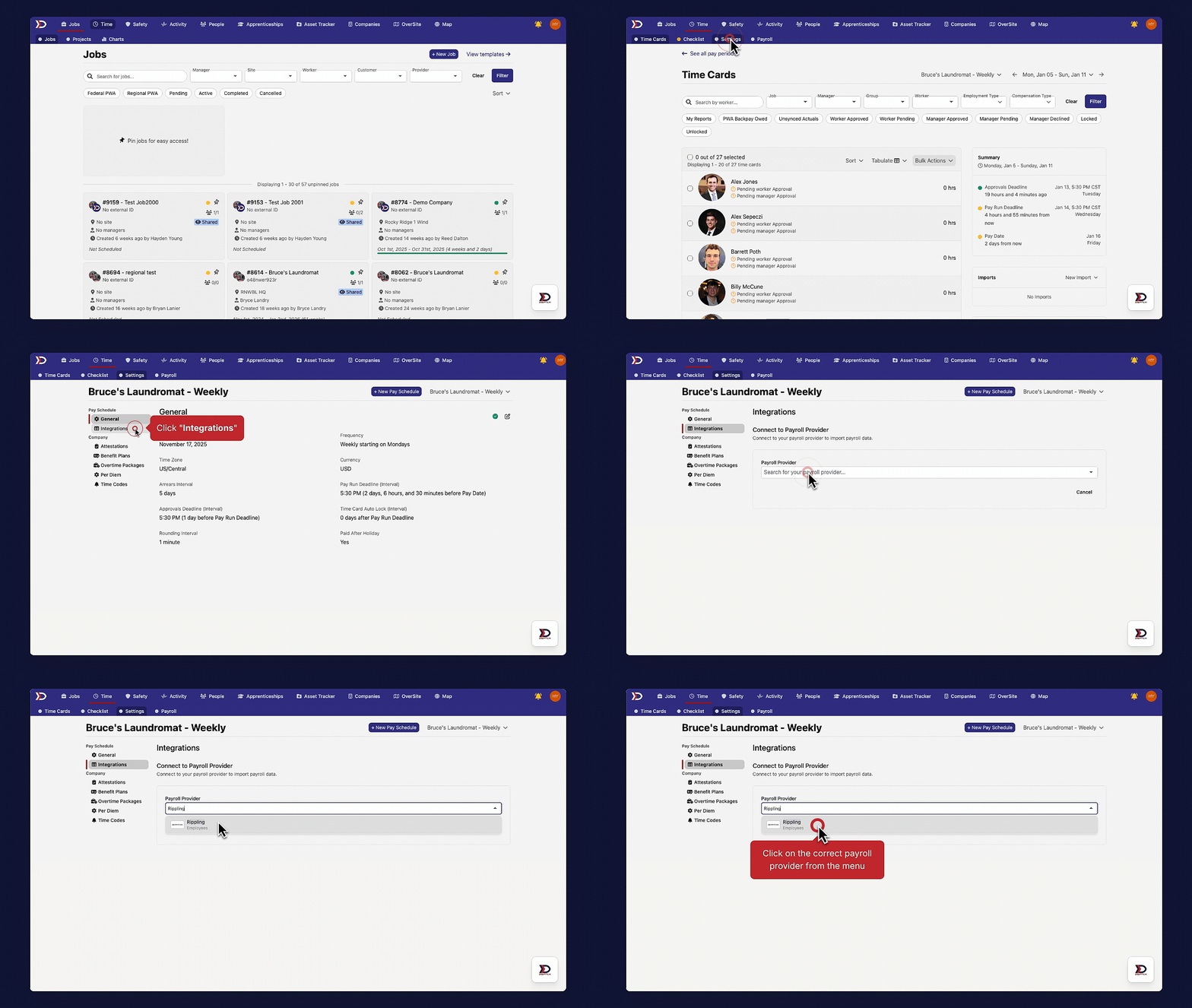
After clicking the payroll provider from the menu, a pop-up window from Finch should appear. Please follow the detailed, step-by-step instructions they provide to complete the integration with your specific payroll provider.
How to Map Fields From Your Payroll Provider to DSPTCH
Once your payroll provider is integrated, DSPTCH attempts to automatically map all of the fields. That said, it is likely there will be a number of "Unknown Mappings" that will require manual intervention.
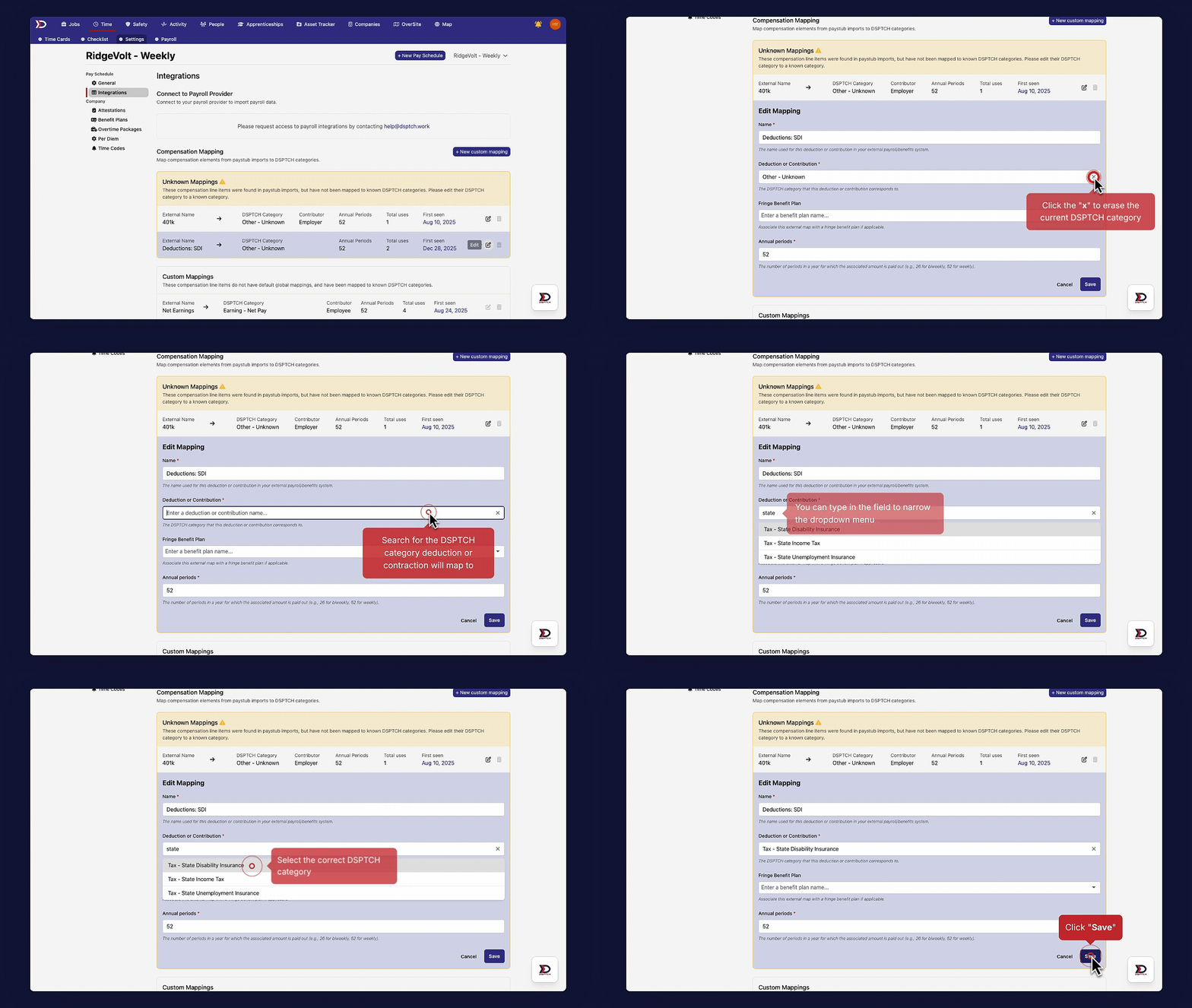
To map unknown fields, start by navigating to the "Integrations" page (instructions above). Then, select the unknown field that will be mapped and click the pencil and paper icon to on the right side of the field (indicated by the red box in the image below).

This will open the "Edit Mapping" form:
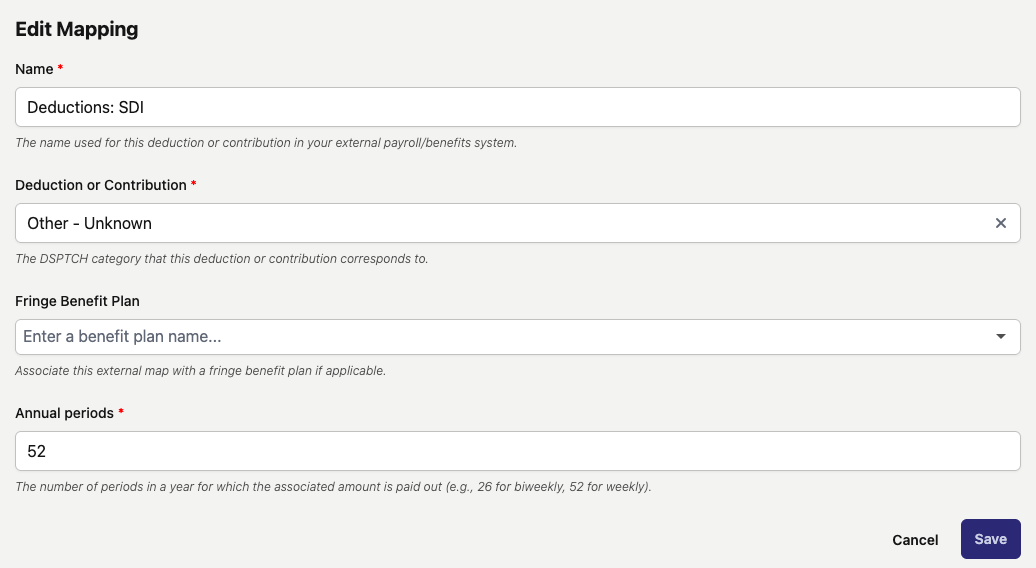
To complete the mapping, click on the "Deduction or Contribution" field and search for the field from DSPTCH that corresponds with the field from your payroll system.
See video below for a demonstration:
Once the field has been mapped, it will be added to the "Custom Mappings" list at the bottom of the "Integrations" page.
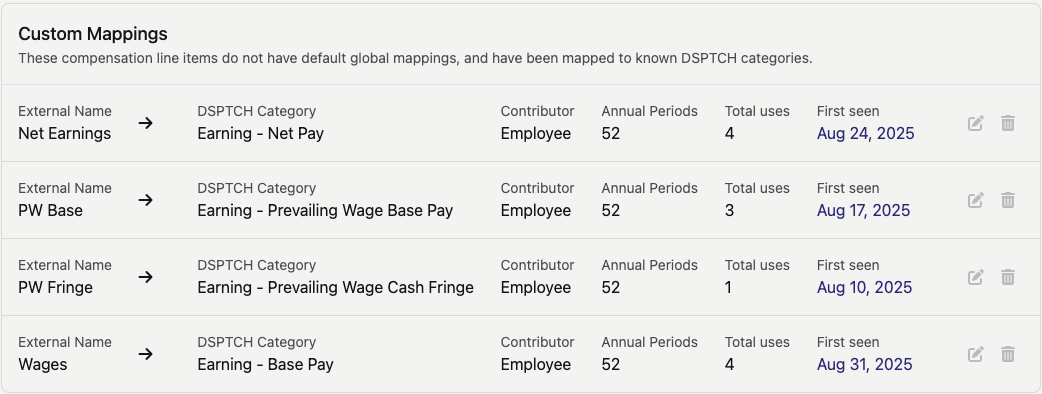
NOTE: Once a field has been mapped and used in DSPTCH, it cannot be edited.