
Activity – Checklist Tab
The Checklist Tab allows managers to track all Compliance Checks for their Company, Project(s), and Job(s) all in one place.
Table of Contents
Navigating to the Assignments Tab
Start by clicking the Activity Tab from the main navigation bar at the top of the screen. Then, click the Checklist Tab from the sub-navigation bar near the top of the screen.
Please see the video below for a demonstration:
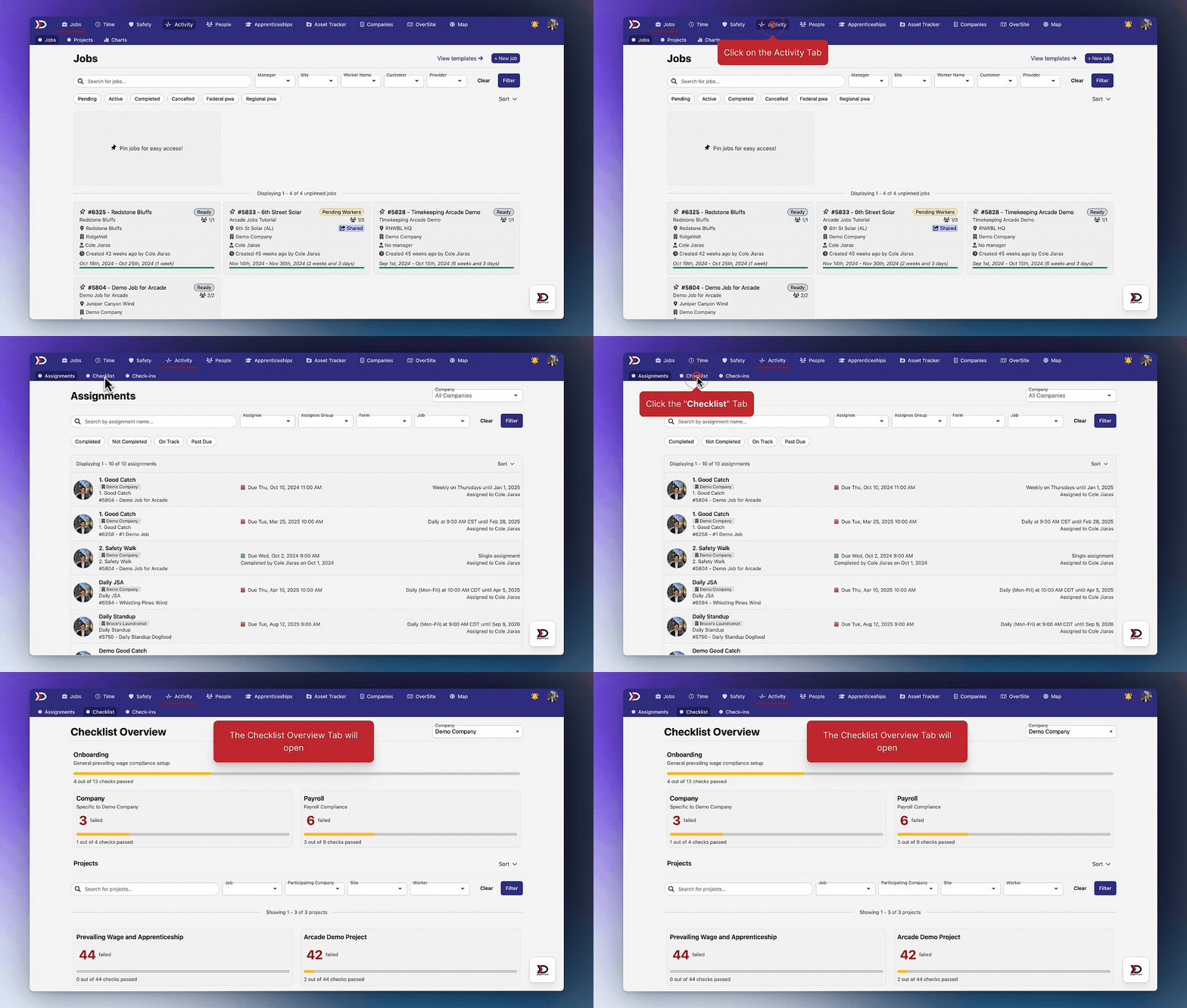
How to Use the Checklist Tab
The Checklist Tab includes a comprehensive list of all Compliance Checks for your Company, Project(s), and Job(s).
The Compliance Checks are separated into three sections: Company, Projects, and Jobs.
Onboarding Section
The Onboarding Compliance Checks are split into two categories: Company & Payroll. These include one-time Compliance Checks such as uploading a Company Handbook or setting up Timecodes for your Company that are required for DSPTCH to function properly.
Click on a section to view the individual Compliance Checks. Each Compliance Check contains self-explanatory instructions on how to resolve it.
Please see the video below for a demonstration:
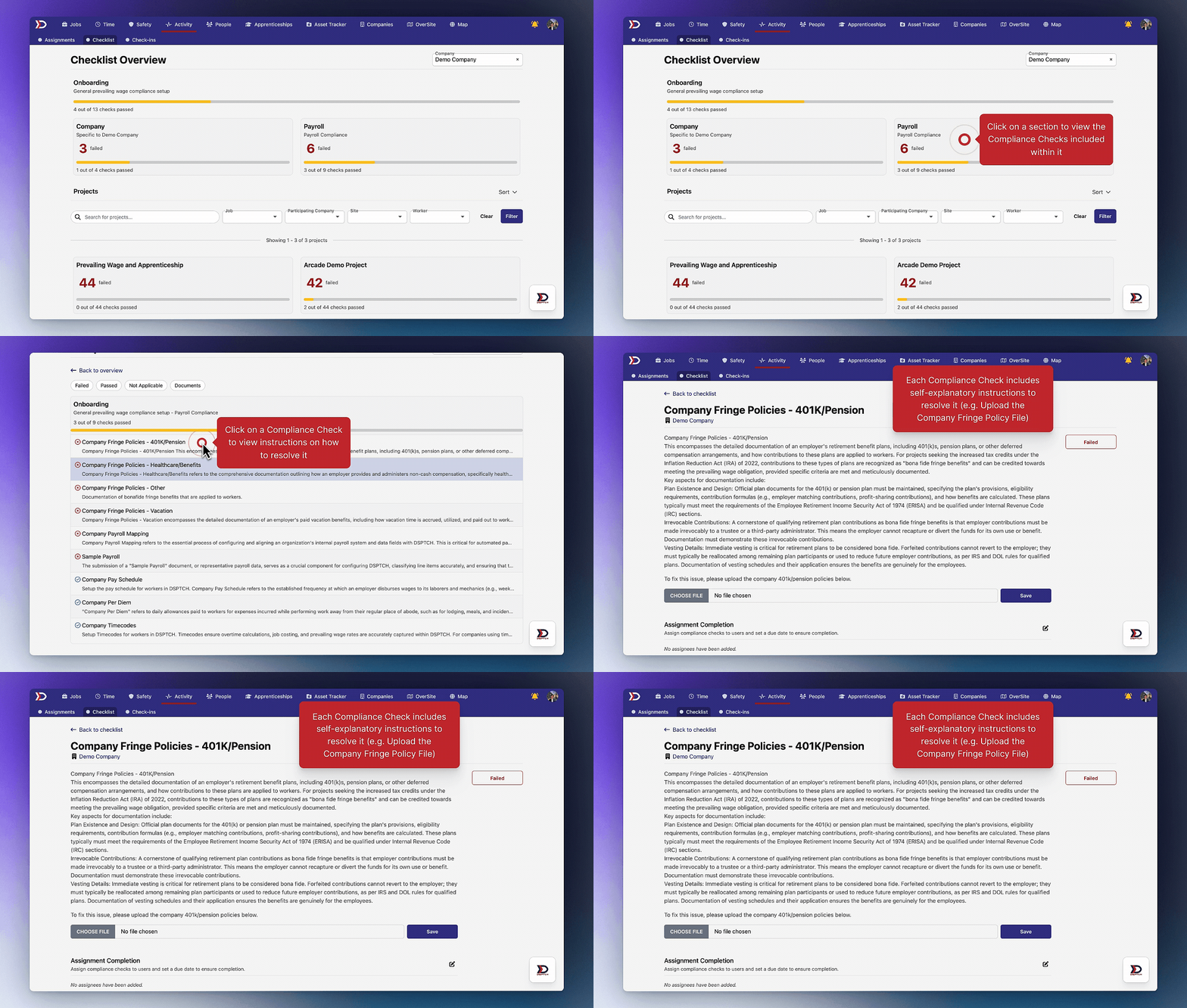
For more information on the Onboarding Section, please read our supplemental help documentation here.
Projects Section
The Projects Section contains a unique section for each Project that exists in your Company. Each Project comes with an individual set of Compliance Checks.
See the image below for an example of what this might look like:
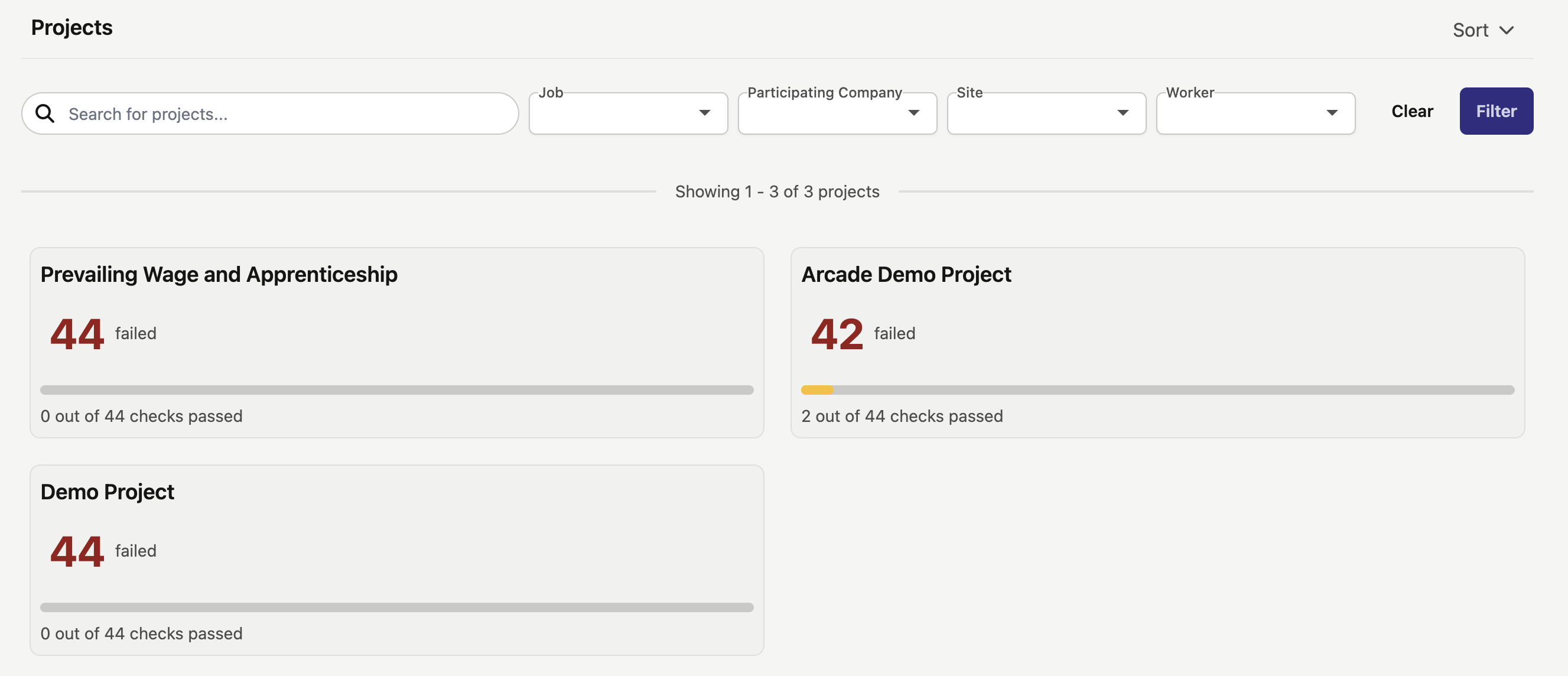
For more information on the Project Compliance Check Section, please read our supplemental help documentation here.
Filtering the Projects Section
The Projects Section has several filtering options available:
- Search for Projects:
- A search bar that can be used to search for Projects by name.
- Job:
- A dropdown select of all Jobs that exist within your Company. If the selected Job is linked to any Projects, then those Projects will appear in the search results.
- Participating Company:
- A dropdown select of all Participating Companies that exist within DSPTCH. If the selected Participating Company is linked to any Projects, then those Projects will appear in the search results.
- Site:
- A dropdown select of all Sites that exist within DSPTCH. If the selected Site is linked to any Projects, then those Projects will appear in the search results.
- Worker:
- A dropdown select of all Workers that exist within your Company. If the selected Worker is linked to any Projects, then those Projects will appear in the search results.
Jobs Section
The Jobs Section contains a unique section for each Job that exists in your Company. Each Job comes with an individual set of Compliance Checks.
See the image below for an example of what this might look like:
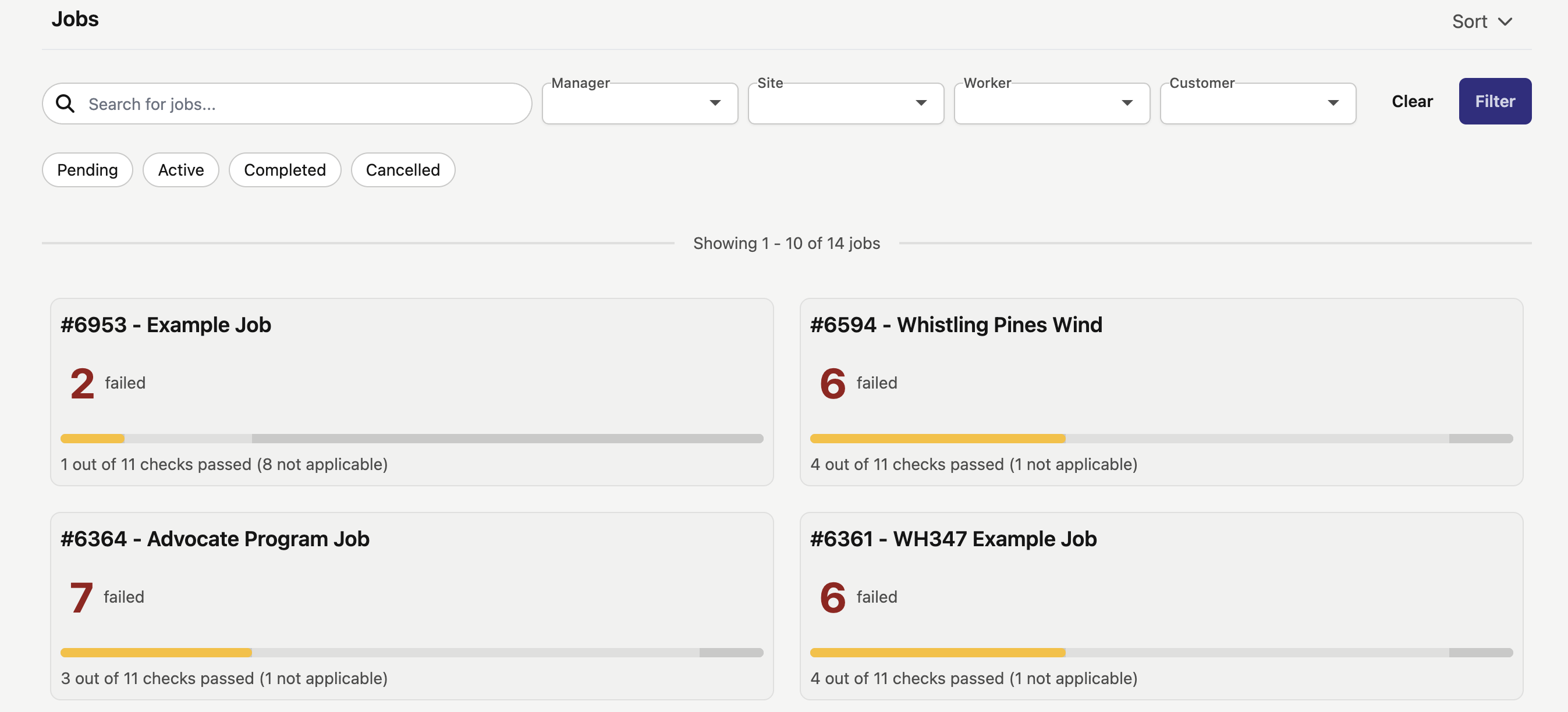
For more information on the Job Compliance Check Section, please read our supplemental help documentation here.
Filtering the Jobs Section
The Jobs Section has several filtering options available:
- Search for Jobs:
- A search bar that can be used to search for Jobs by name.
- Manager:
- A dropdown select of all Managers that exist within your Company. If the selected Manager is linked to any Jobs, then those Jobs will appear in the search results.
- Site:
- A dropdown select of all Sites that exist within DSPTCH. If the selected Site is linked to any Jobs, then those Jobs will appear in the search results.
- Worker:
- A dropdown select of all Workers that exist within your Company. If the selected Worker is linked to any Jobs, then those Jobs will appear in the search results.
- Customer:
- A dropdown select of all Companies that exist within DSPTCH. If the selected Customer Company is linked to any Jobs, then those Jobs will appear in the search results.
- Pending Toggle:
- Toggle on to include all Jobs that are pending scheduling.
- Active Toggle:
- Toggle on to include all Jobs that are active.
- Completed Toggle:
- Toggle on to include all Jobs that have been completed.
- Cancelled Toggle:
- Toggle on to include all Jobs that have been cancelled.