Projects: Certified Payroll Tab – Web
For projects, the "Certified Payrolls" tab is a centralized location that allows the exporting of all certified payroll reports for every job associated with a project within a set of time periods. For more information on creating a project, please review the Create a Project Section of our Projects - Web help document.
Table of Contents
- Navigate to the Project Certified Payrolls Tab
- Certified Payrolls Tab Overview
- Exporting Certified Payroll Reports
- Other Aspects of the Certified Payrolls Tab
Navigate to the Project Certified Payrolls Tab
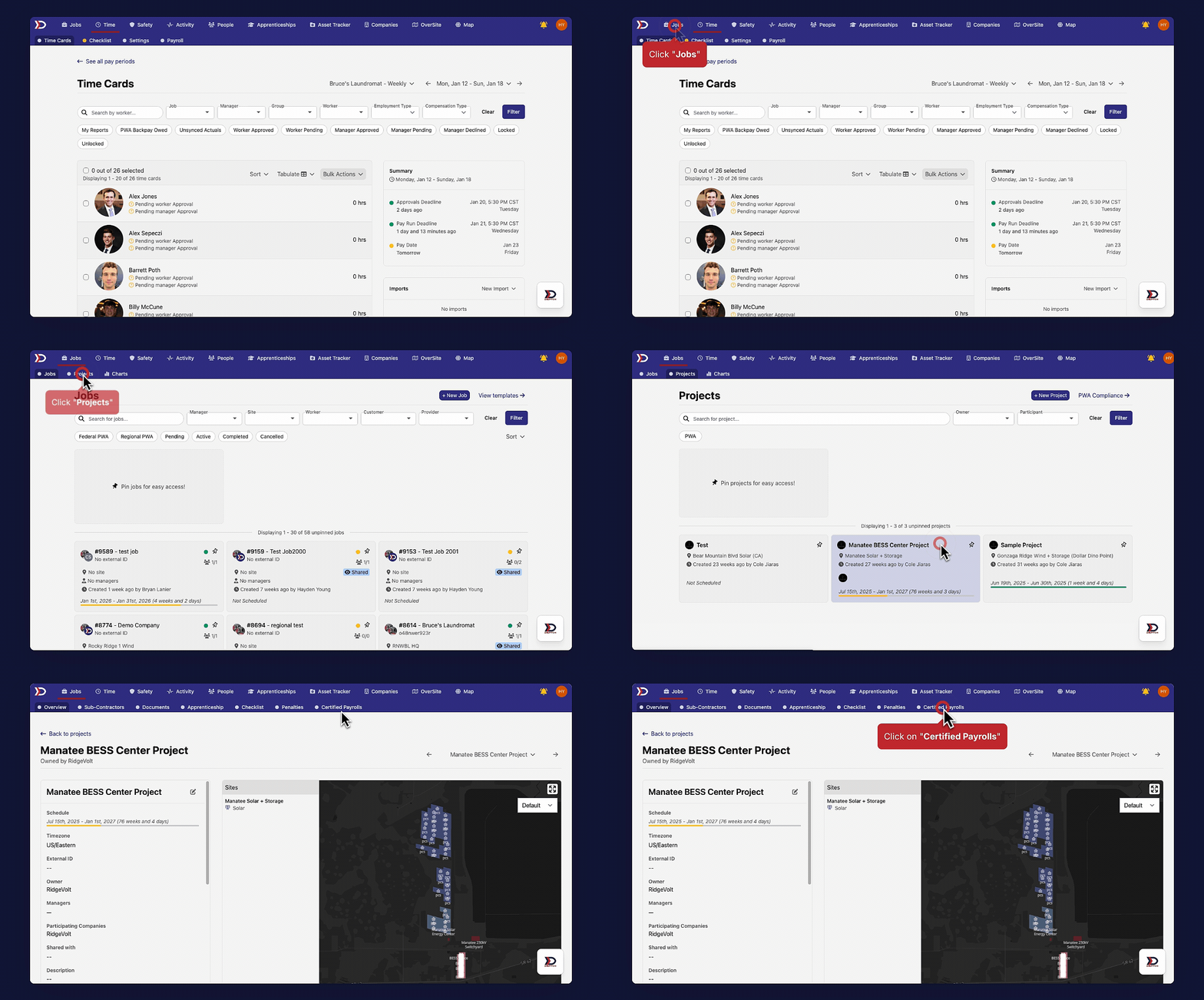
To navigate to the "Certified Payrolls" tab, start by clicking on the "Jobs" tab in the primary navigation bar at the top of the page. Then, click the "Projects" tab in the sub navigation bar at the top of the page. This will open the "Projects" page. Click on the relevant project to open its project card. Once in the project card click the "Certified Payrolls" tab in the sub navigation bar at the top of the page.
See the video below for a demonstration:
Certified Payrolls Tab Overview
The "Certified Payrolls" tab displays all jobs associated with the project and allows for the certified payroll reports of all jobs with data inputed into DSPTCH within a specified time period to be exported. The jobs can be viewed at the bottom of the page (indicated in the image below by the red box).
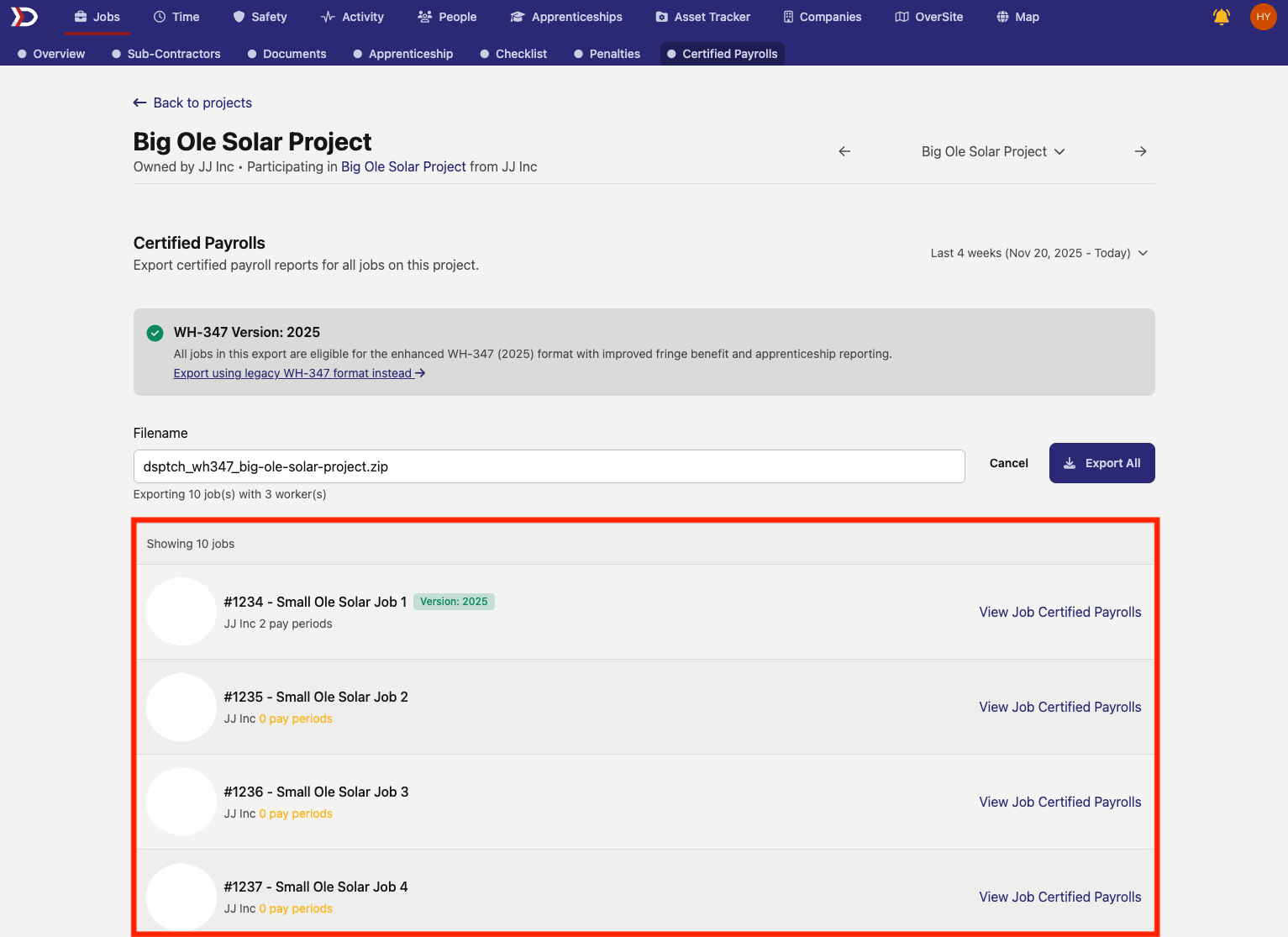
If a job is eligible to have its certified payroll reports exported with the enhanced WH-347 (2025) format, the tag to the right of the job name with read "Version: 2025."

If a job is not eligible to have its certified payroll reports exported with the enhanced WH-347 (2025) format, the tag to the right of the job name with read "Version: Legacy."
If all certified payroll reports for a project can be exported using the enhanced WH-347 (2025) format, then this banner will appear near the top of the page:

If desired, the legacy WH-347 format can be utilized for the export by clicking "Export using legacy WH-347 format instead" (as indicated by the red box and arrow in the image below. Clicking on this option will directly initiate an export.

If there are jobs where the certified payroll report cannot be exported using the enhanced WH-347 (2025) format, then this banner will appear near the top of the screen:

Exporting Certified Payroll Reports
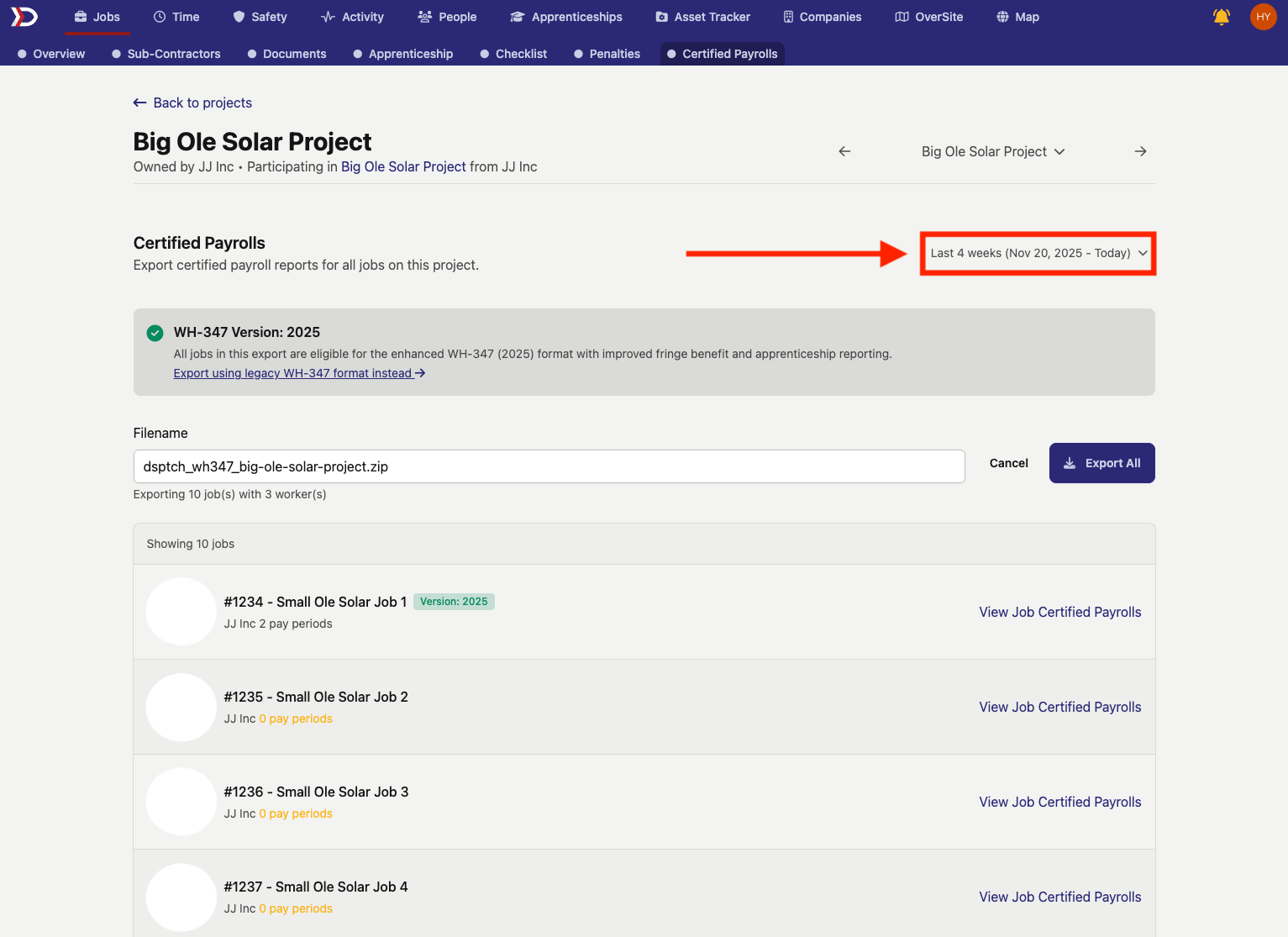
To export certified payroll reports, select the desired date range by clicking date range in the top right of the page (indicated by the red box and arrow in the image below).
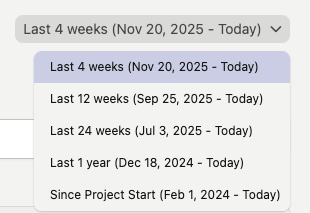
Clicking on the date range will open a menu with date range options. The options vary depending when the project start, but examples of options include:
- Last 4 weeks (Mon. DD, YYYY - Today)
- Last 12 weeks (Mon. DD, YYYY - Today)
- Last 24 weeks (Mon. DD, YYYY - Today)
- Since Project Start (Mon. DD, YYYY - Today)
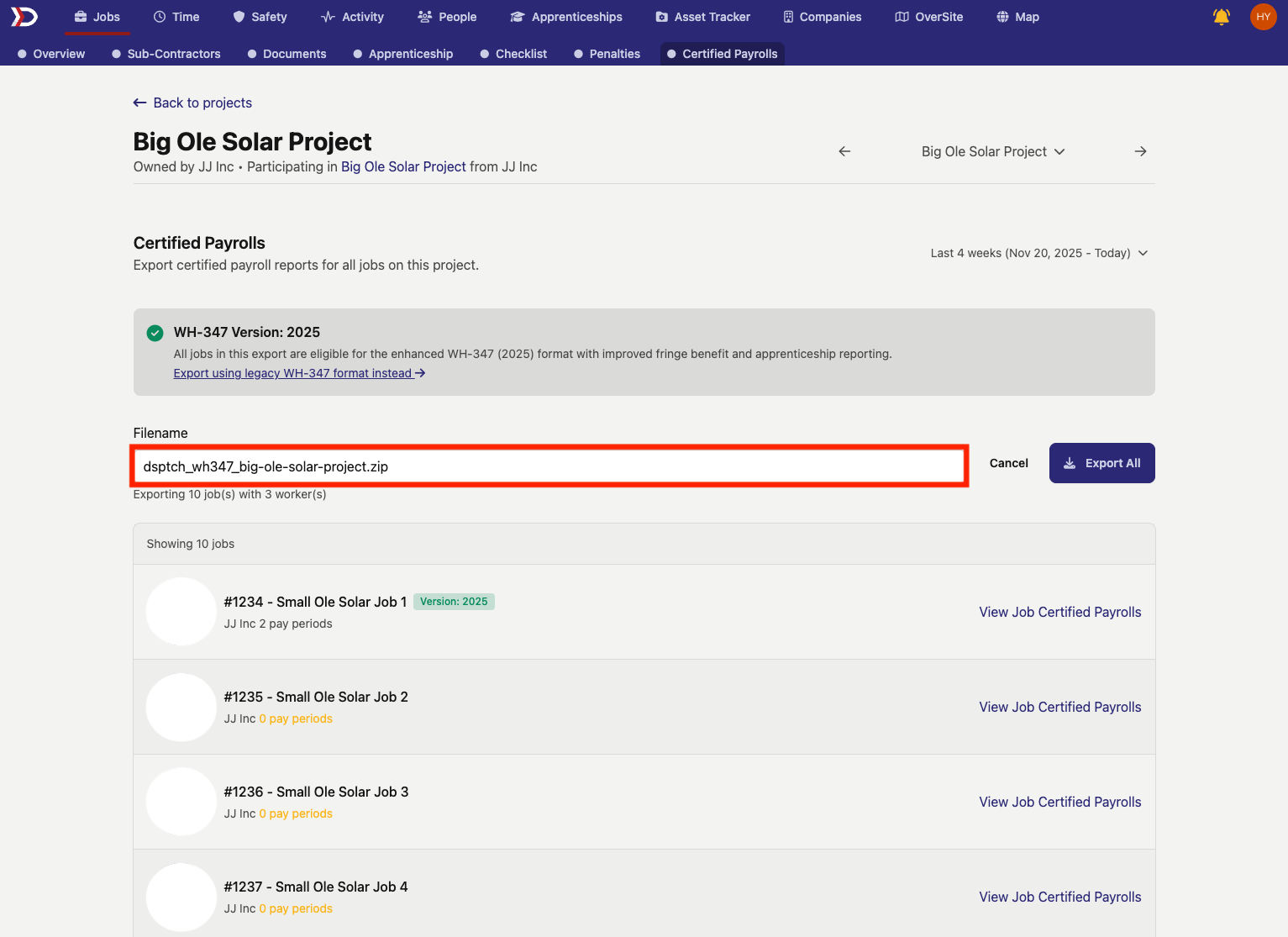
If desired, the file name can also be edited by typing in the input field under "Filename" (indicated by the red box in the image below).
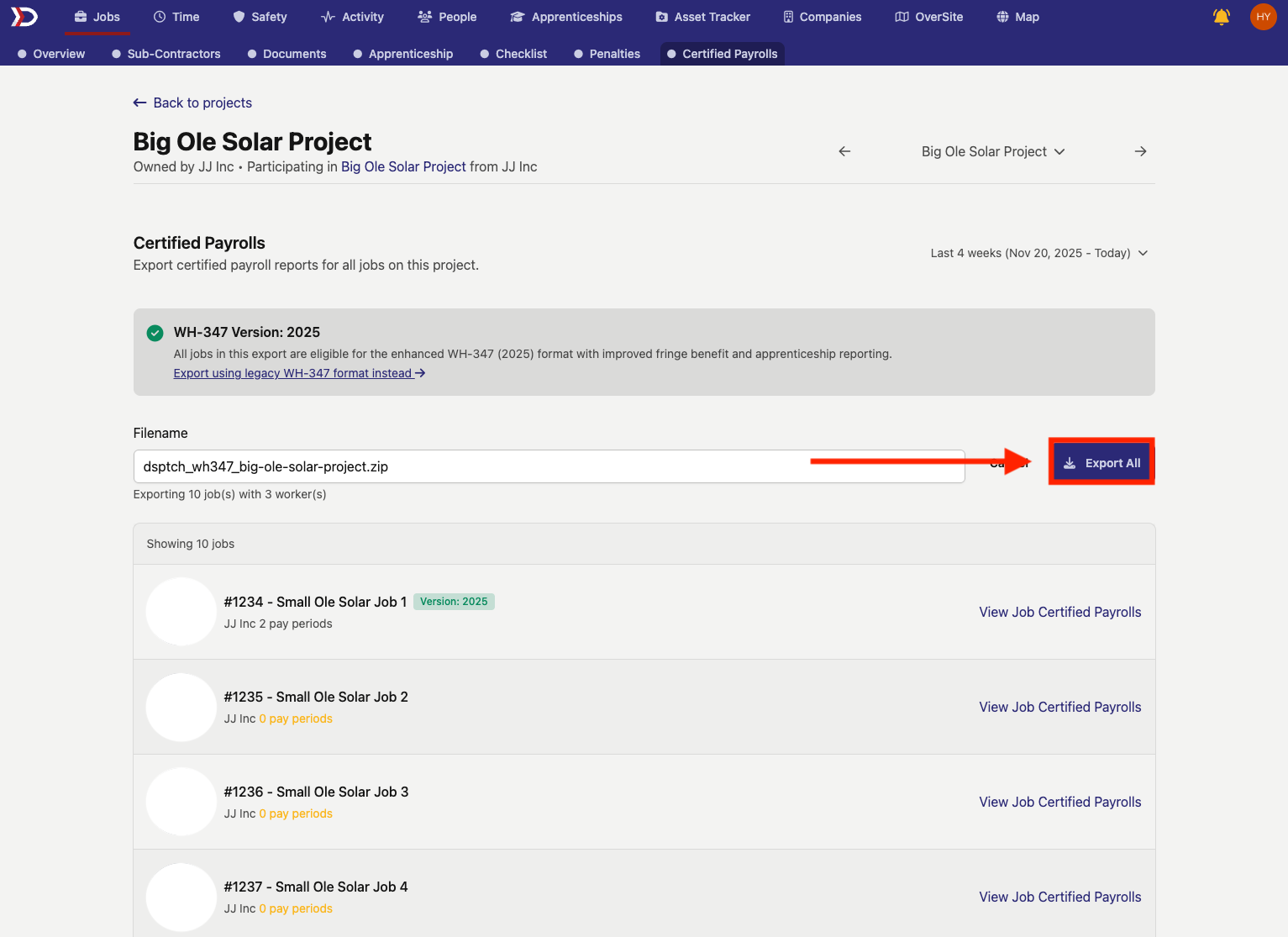
Once the parameters of the export are satisfactory, click on the blue "Export All" button (indicated by the red box and arrow in the image below).
When the export is ready to be downloaded, a green banner will appear near the top of the page. To download the export, click on the icon on the right side of the banner (indicated by the red box and arrow in the image below).

Other Aspects of the Certified Payrolls Tab
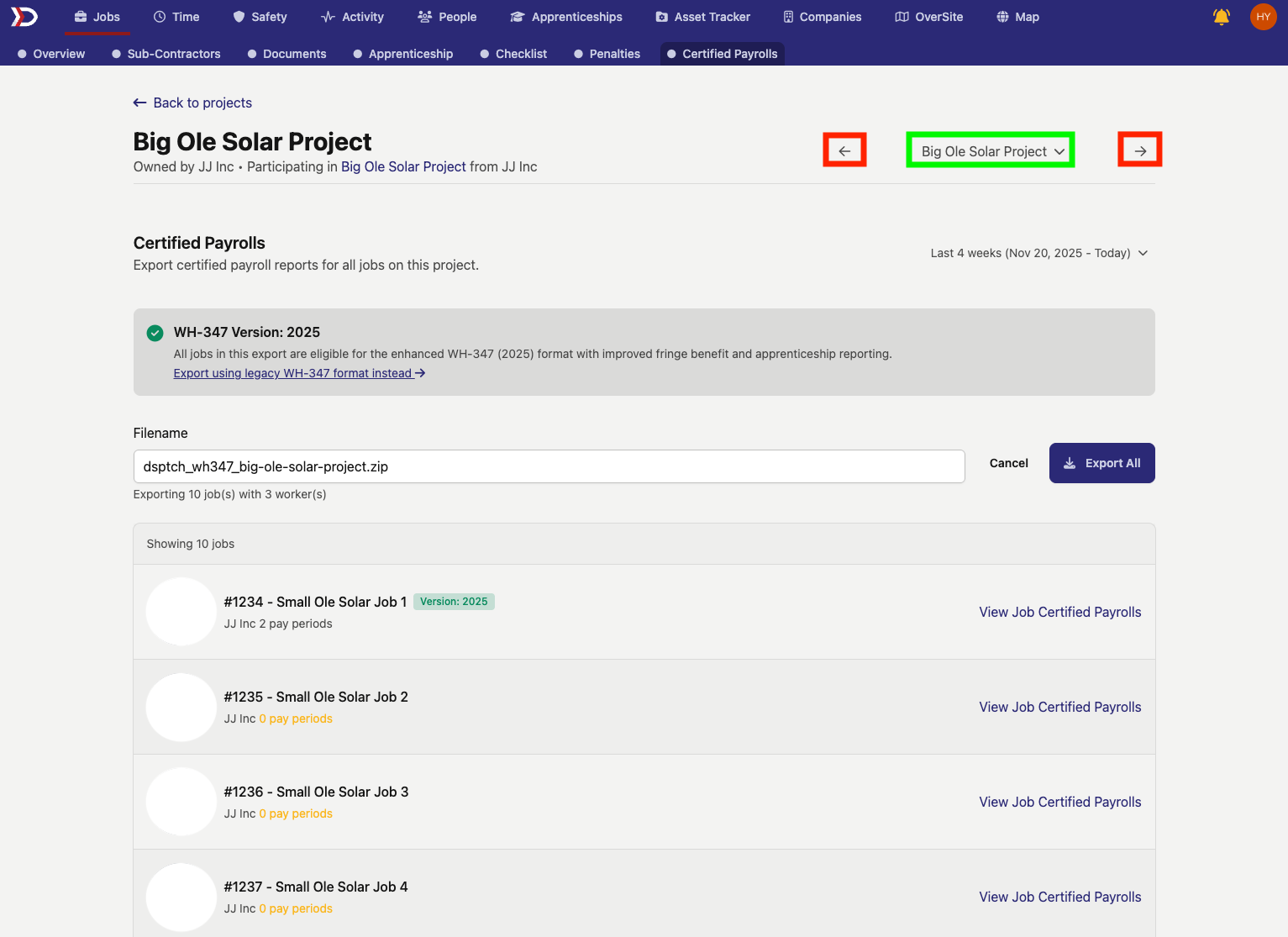
From the "Certified Payrolls" tab, other projects can be navigated to using the directional arrows (indicated in the image below with red boxes) and menu in the top right corner of the page. The menu can be opened by clicking on the name of the current project being viewed (indicated by the green box in the image below).
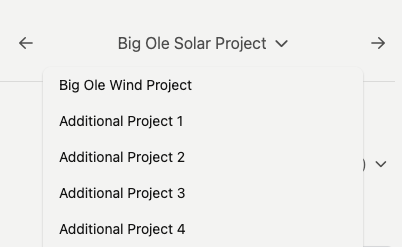
An example of the menu is provided below.
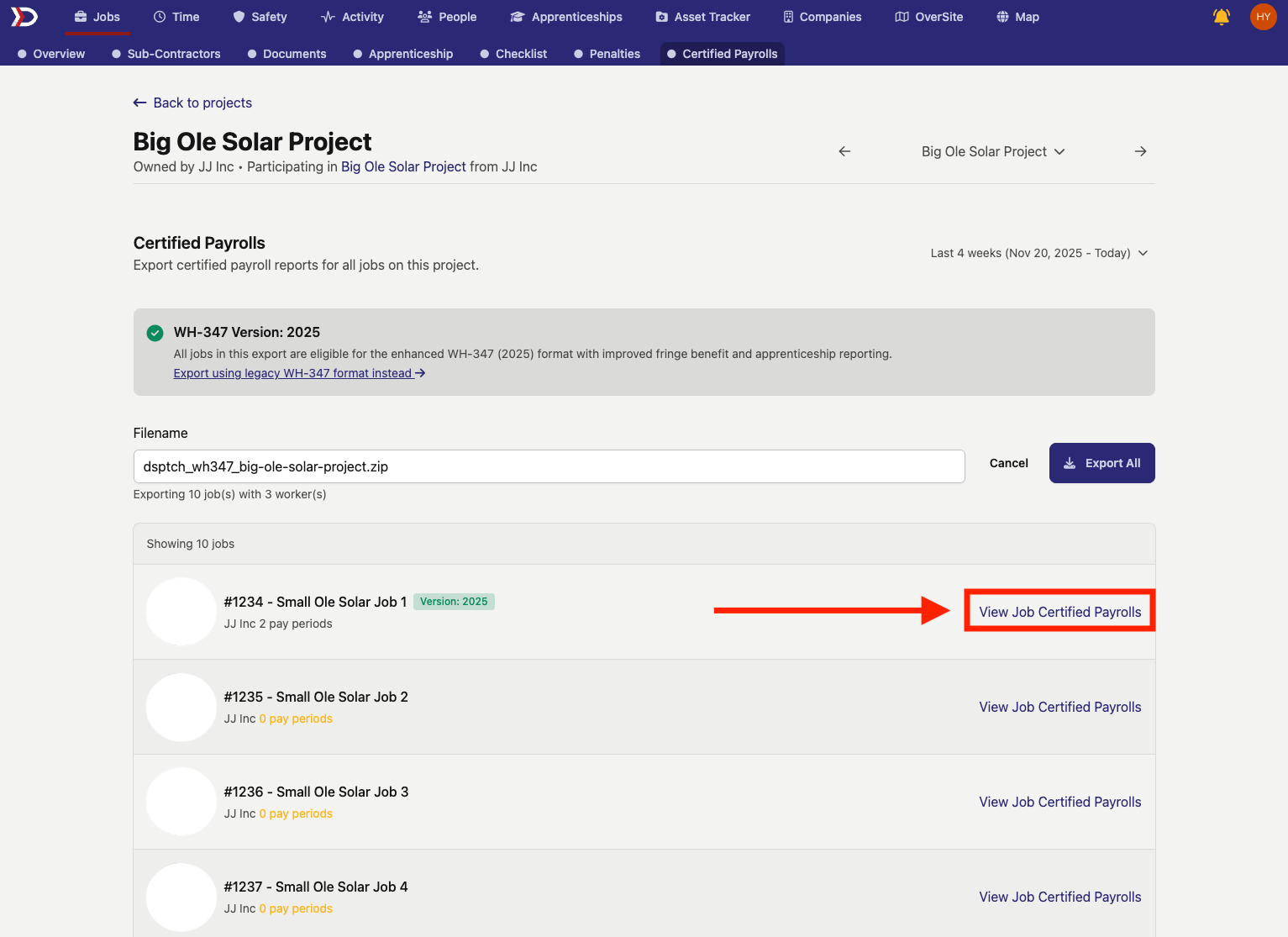
From the "Certified Payrolls" tab, more specific certified payrolls can be navigated to if exporting all reports for a project is more than what is desired. To navigate to the available certified payroll reports for a specific job, click on the "View Job Certified Payrolls" text to the right of the specific job in the table at the bottom of the page (indicated by the red box and arrow in the image below). Doing this will open the "Certified Payroll" section of the "Compliance" tab of the specific job card. For more information on the job card "Compliance" tab, please review our help doc here.